Sync your phone and PC without the internet
Streak has no account and no internet permission. That is on purpose: if the app cannot reach the network, your habits cannot leak. The catch is obvious. How do you use it on your phone and on your computer at the same time?
The answer is a folder. Streak can save its backups to a folder you choose, and it reads that same folder every time it opens. If something keeps that folder identical on both devices, Streak takes care of the rest. That something is Syncthing, a free, open-source tool that copies files directly between your own devices over your own network.
I tested every step below with an Android phone and a Windows PC. Linux works the same way.
What you need
- Streak 2.3.0 or newer on your phone and on your PC.
- Syncthing on both:
- Android: Syncthing-Fork from F-Droid.
- Windows: SyncTrayzor. The portable x64 zip is enough; unzip it and open it.
- Linux: the
syncthingpackage from your distribution.
- Both devices on the same Wi-Fi when you want them to catch up.
1. Keep Syncthing on your network
Out of the box, Syncthing can use servers on the internet to find your devices and pass data between them. You do not need any of that at home. Turn it off on both devices:
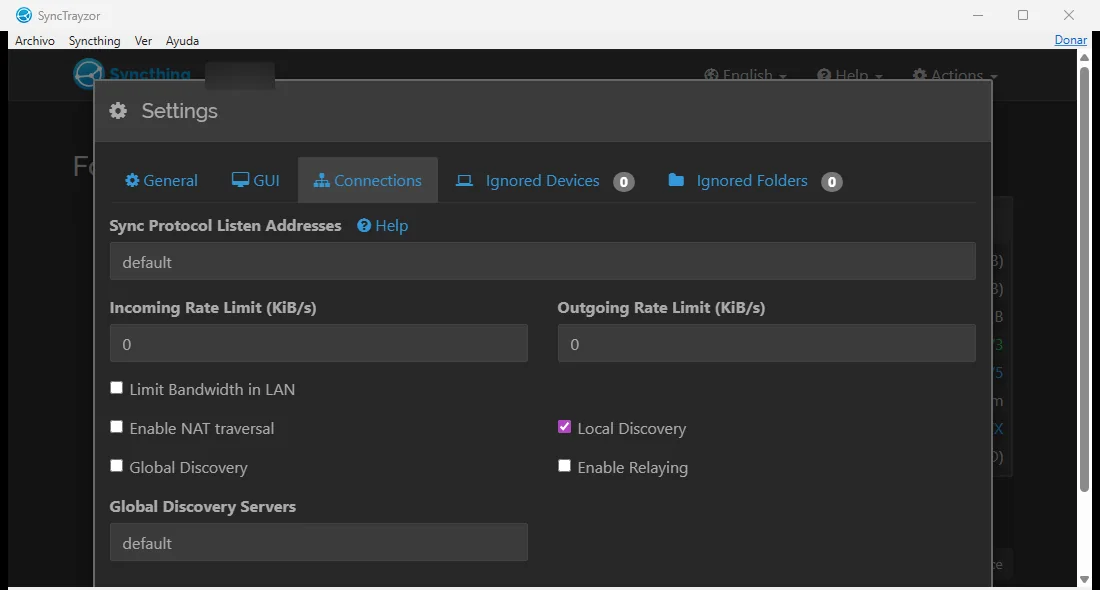
- PC: in Syncthing, open Actions → Settings → Connections.
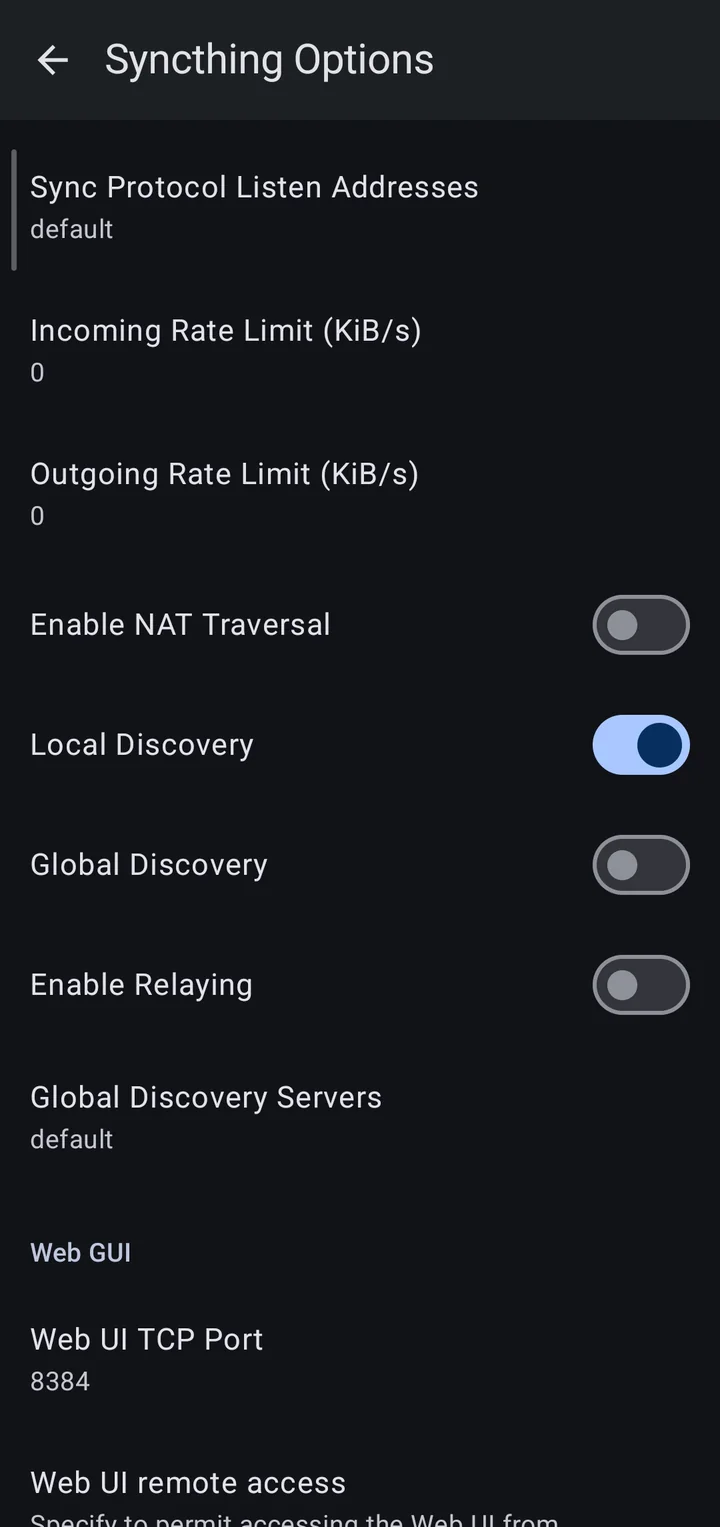
- Phone: in Syncthing-Fork, open the side menu, then Settings → Syncthing Options.
Switch off Enable NAT traversal, Global Discovery and Enable Relaying. Leave Local Discovery on: that is how the two devices find each other on your Wi-Fi.
2. Pair the two devices
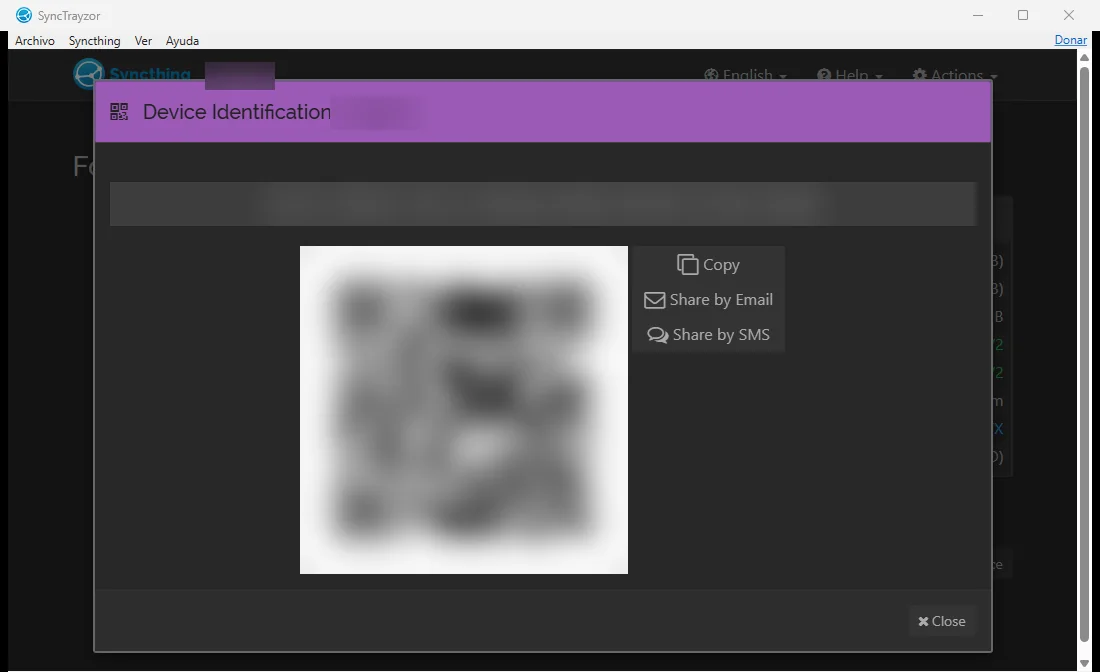
On the PC, open Actions → Show ID. You get a long code and a QR code.
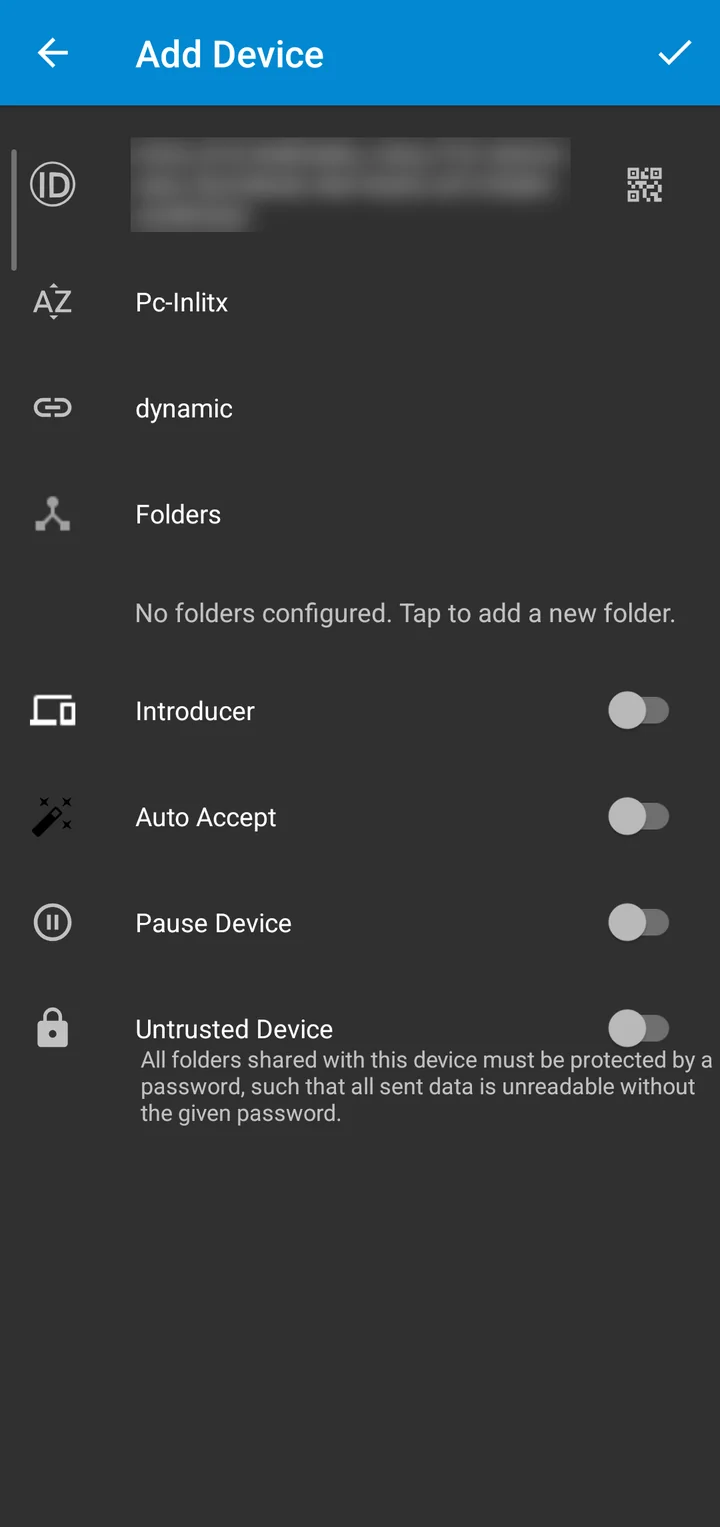
On the phone, go to the Devices tab and tap the add button at the top. Scan the QR code (or paste the code), give the PC a name you will recognise, and tap the tick.
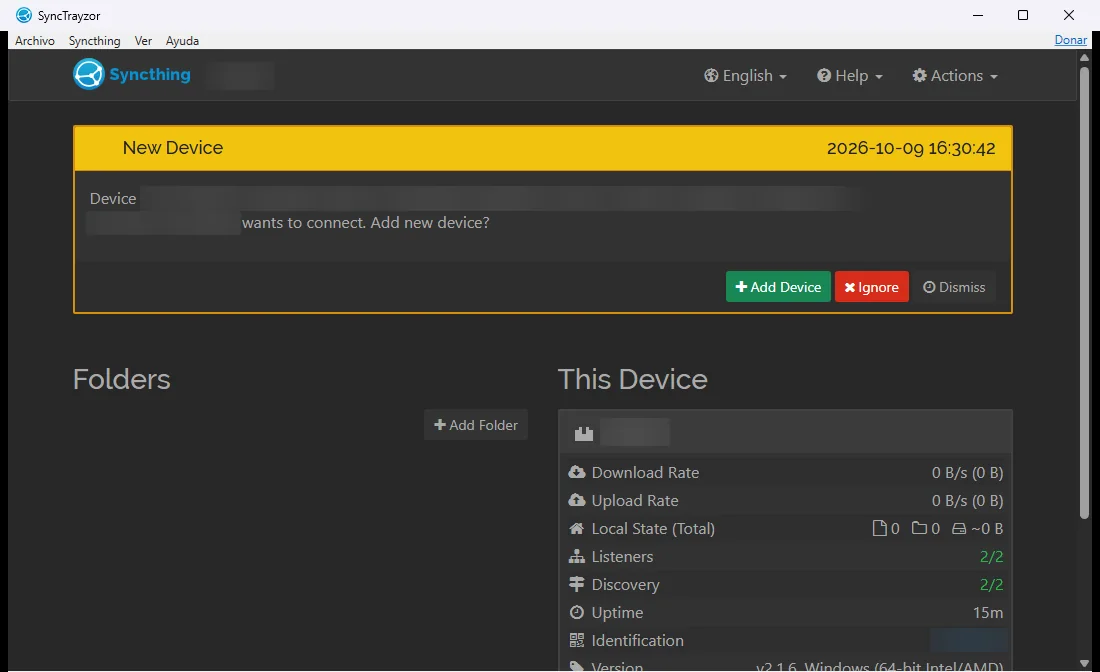
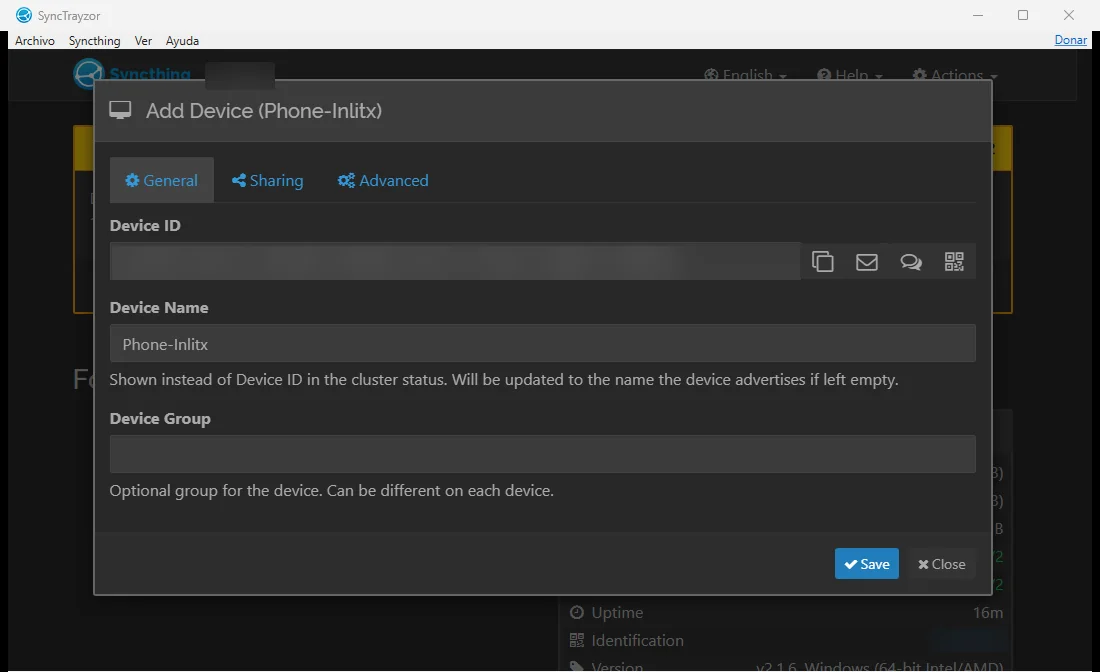
A few seconds later the PC asks if it should accept the phone. Tap Add Device, give it a name and Save.
3. Share one folder
Do not share Streak's own data folder. On the PC, Streak keeps its live database there (you can see it in Settings → Data → Data folder; on Windows it is
Documents\Streak). Copying it between devices while Streak runs can break it. Use a new, empty folder with a different name, likeStreakSync.
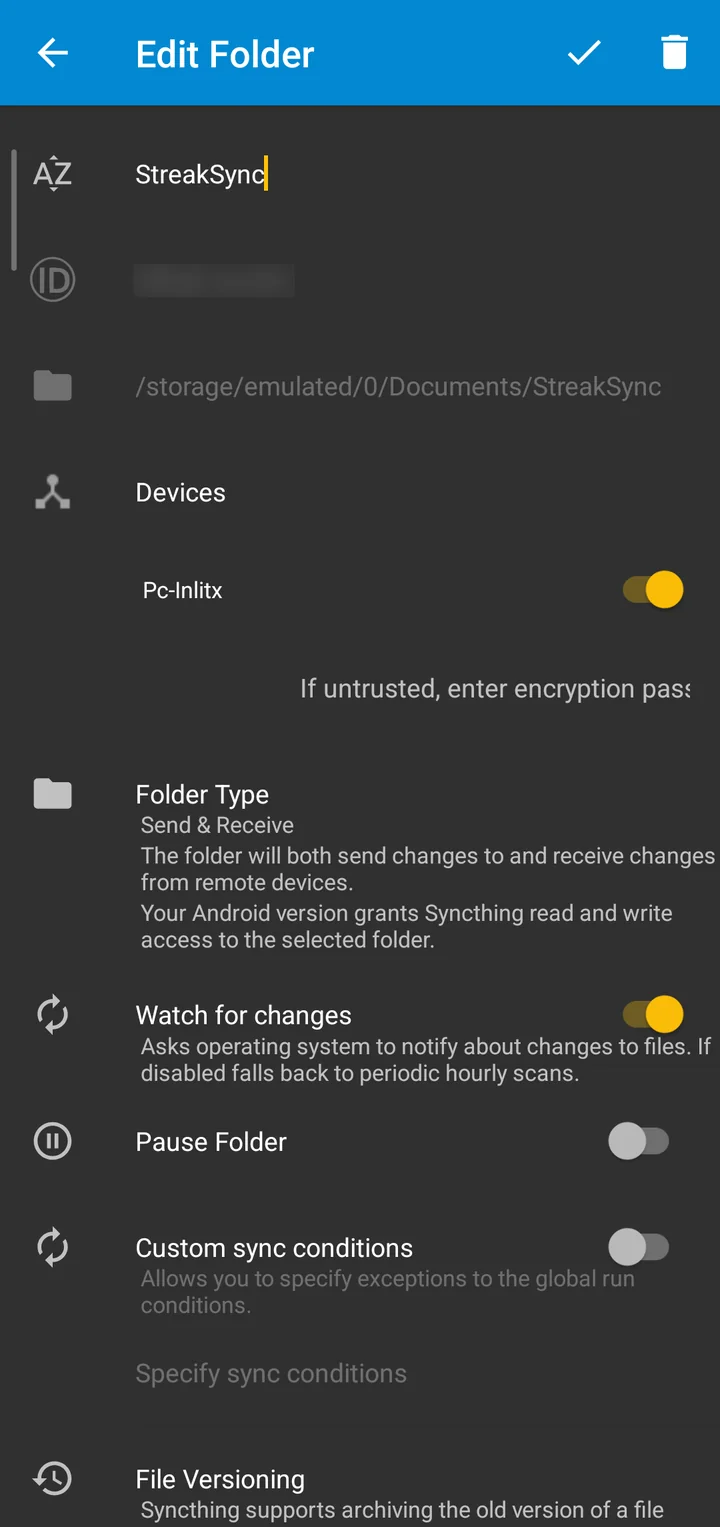
On the phone, go to the Folders tab and tap the add folder button. Call it StreakSync, pick (or create) Documents/StreakSync as the directory, switch on your PC under Devices and tap the tick.
The PC now asks if it should add the folder. Tap Add, set the Folder Path to ~\Documents\StreakSync (or anywhere you like that is not Streak's data folder) and Save.
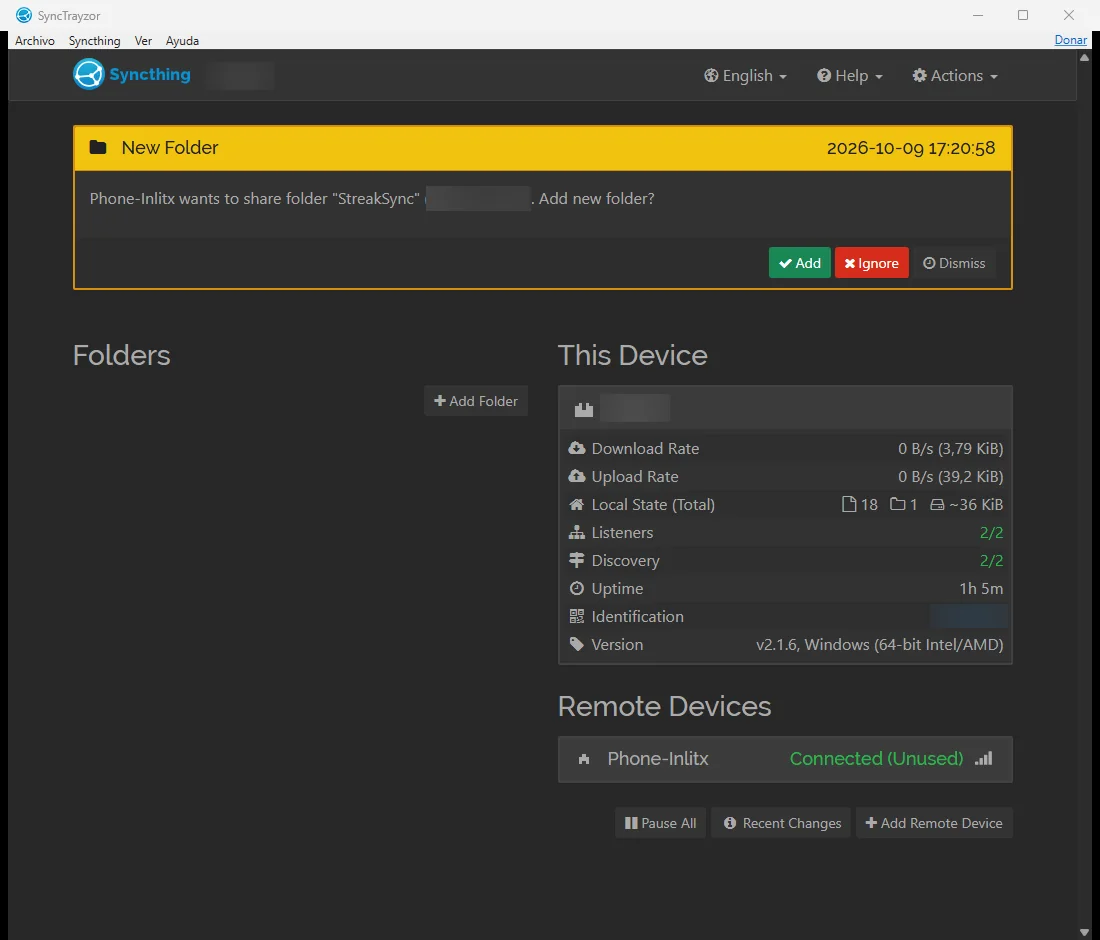
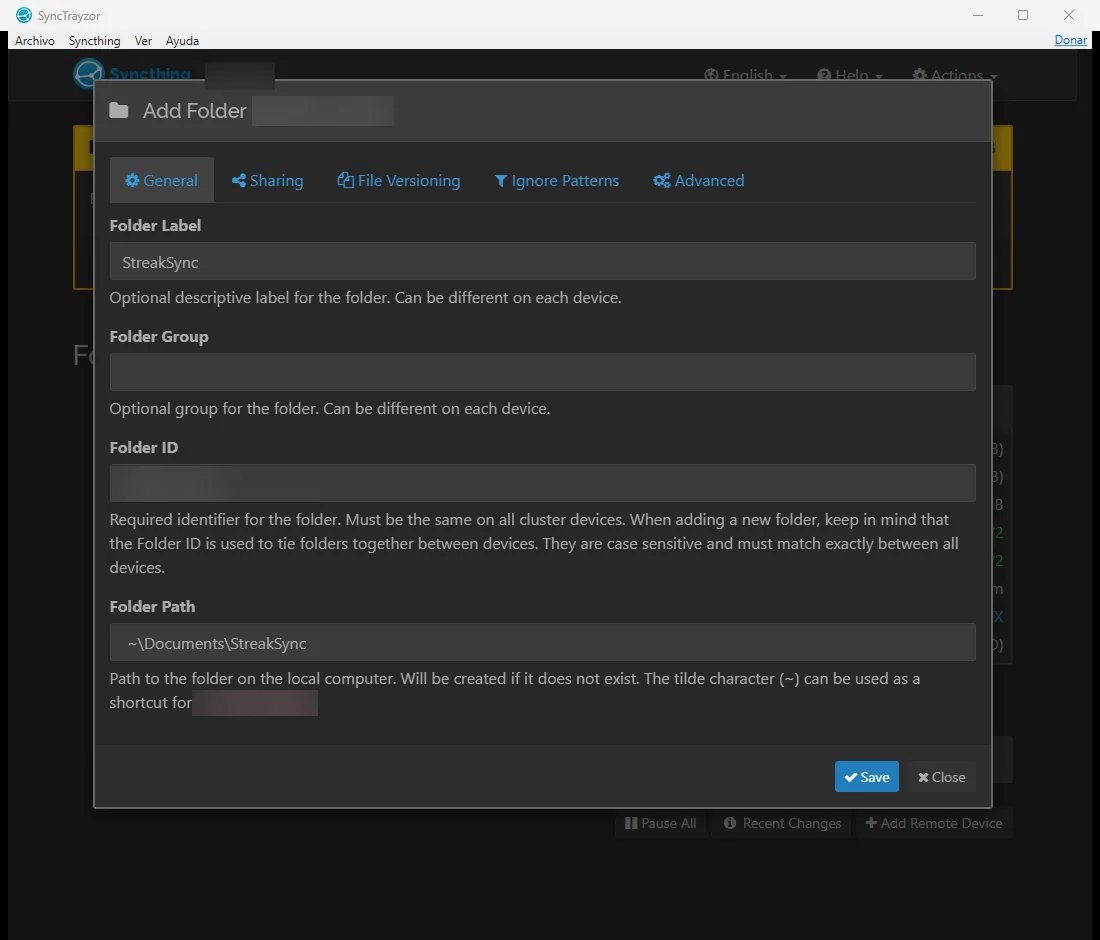
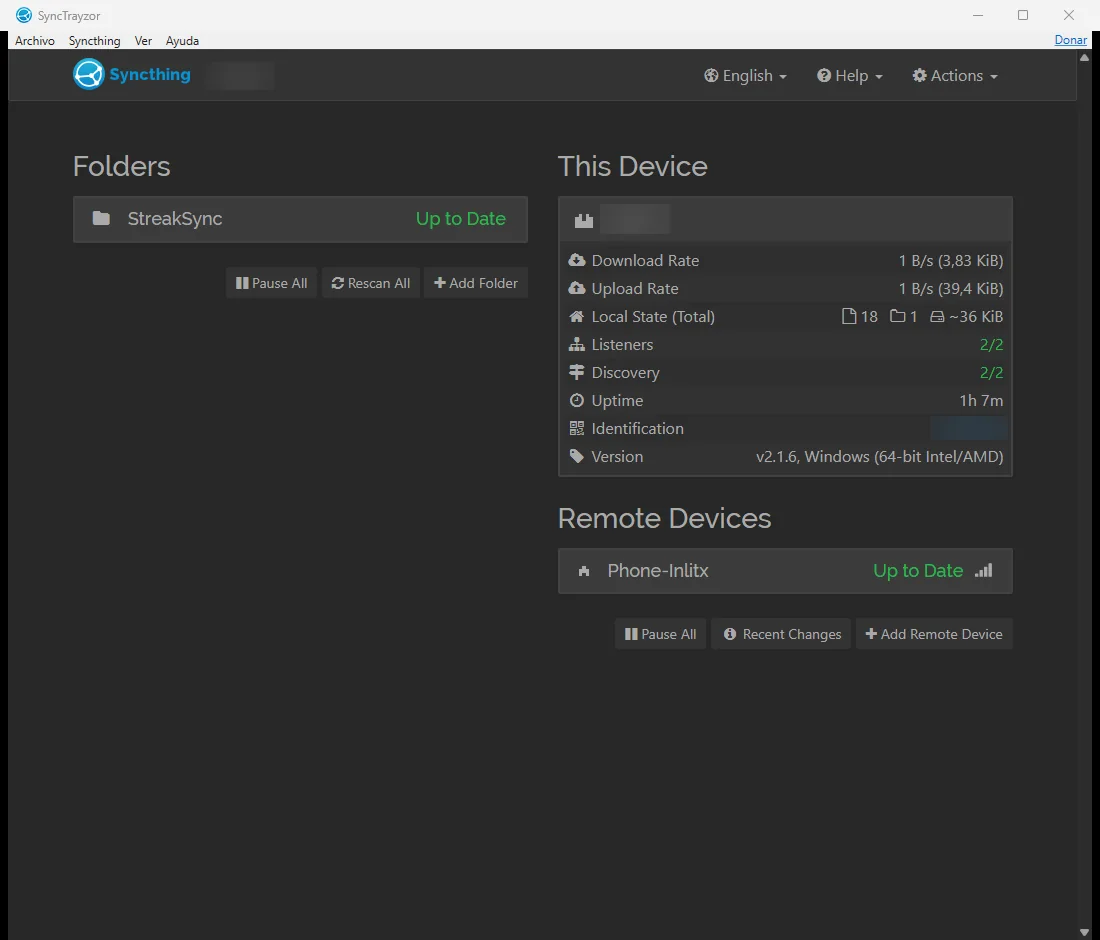
When both sides say Up to Date, the folder is shared.
4. Point Streak at the folder
On each device, open Streak and go to Settings → Data → Automatic backup:
- Choose Every day.
- Tap Folder and pick
StreakSync. On Android, Streak asks for access to your files the first time. - Readable copy is optional. It also writes your habits as Markdown files you can open in any editor.
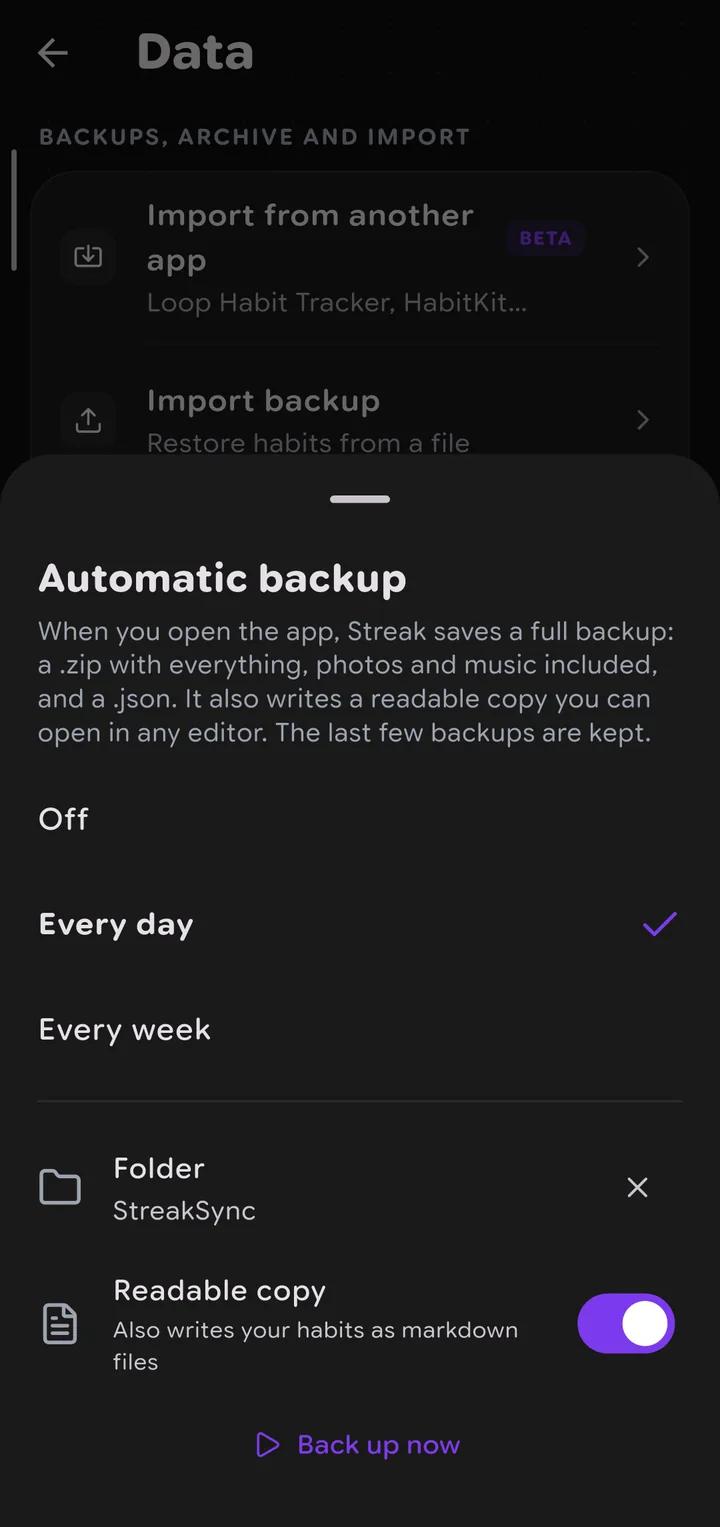
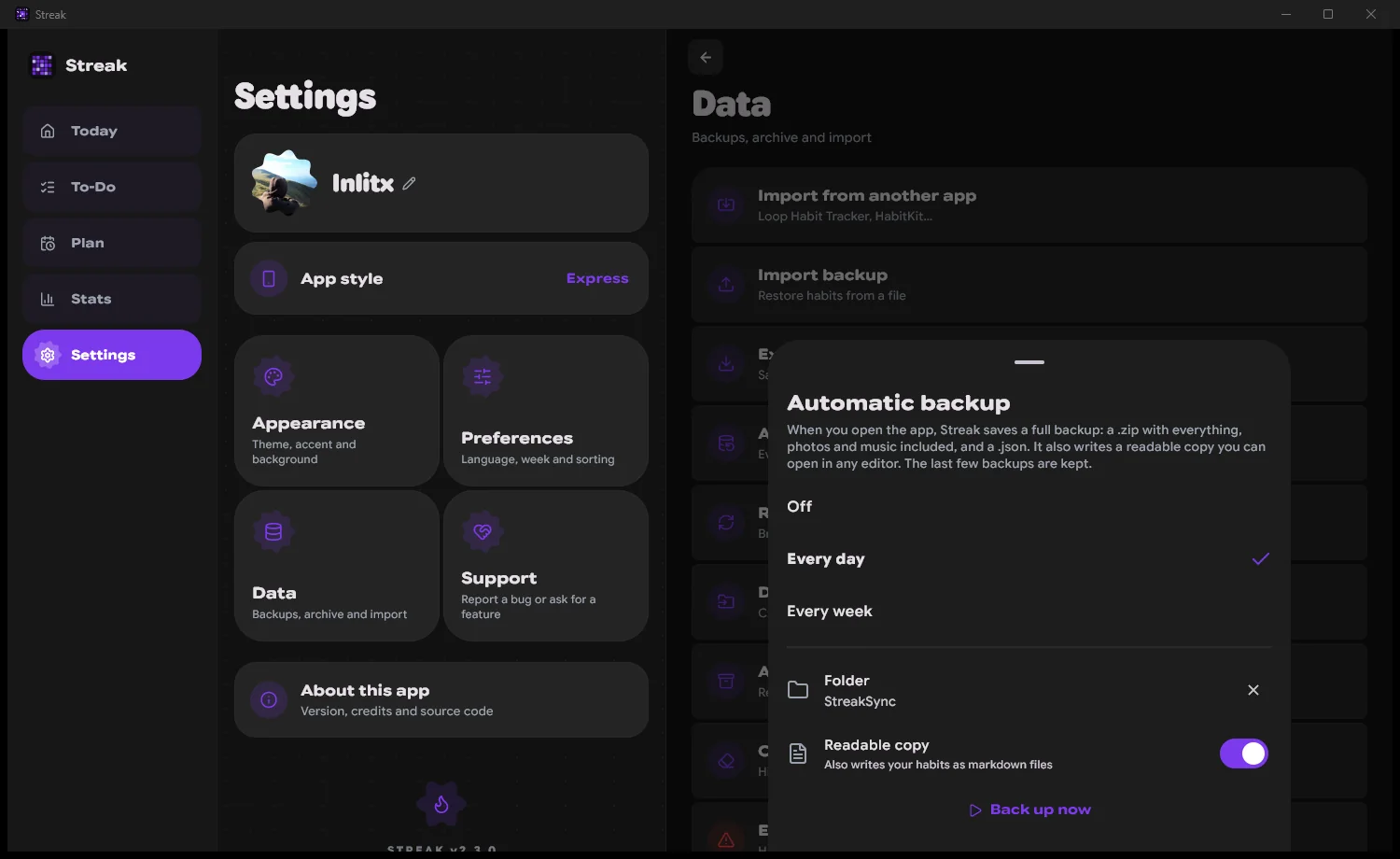
From now on Streak saves a backup into that folder when you open it (once a day, with Every day), and every time it starts it reads what your other device left there.
5. Use it
Say you marked a few habits on your phone. To send them over right away, open Automatic backup and tap Back up now. Syncthing copies the new backup to the PC in a few seconds.
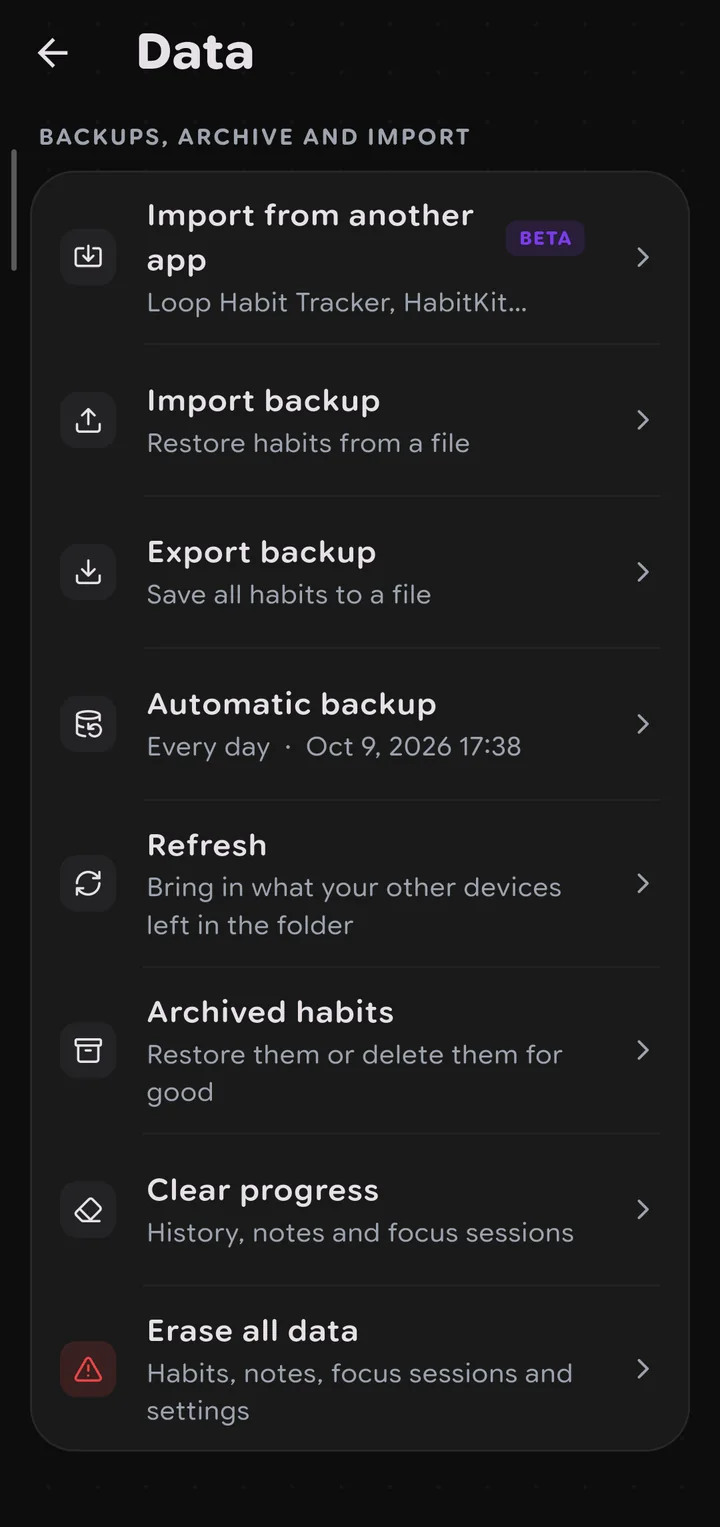
On the PC, open Streak and your changes are there. If it was already open, go to Settings → Data → Refresh. It brings in what the phone left and saves a fresh backup of the PC at the same time.
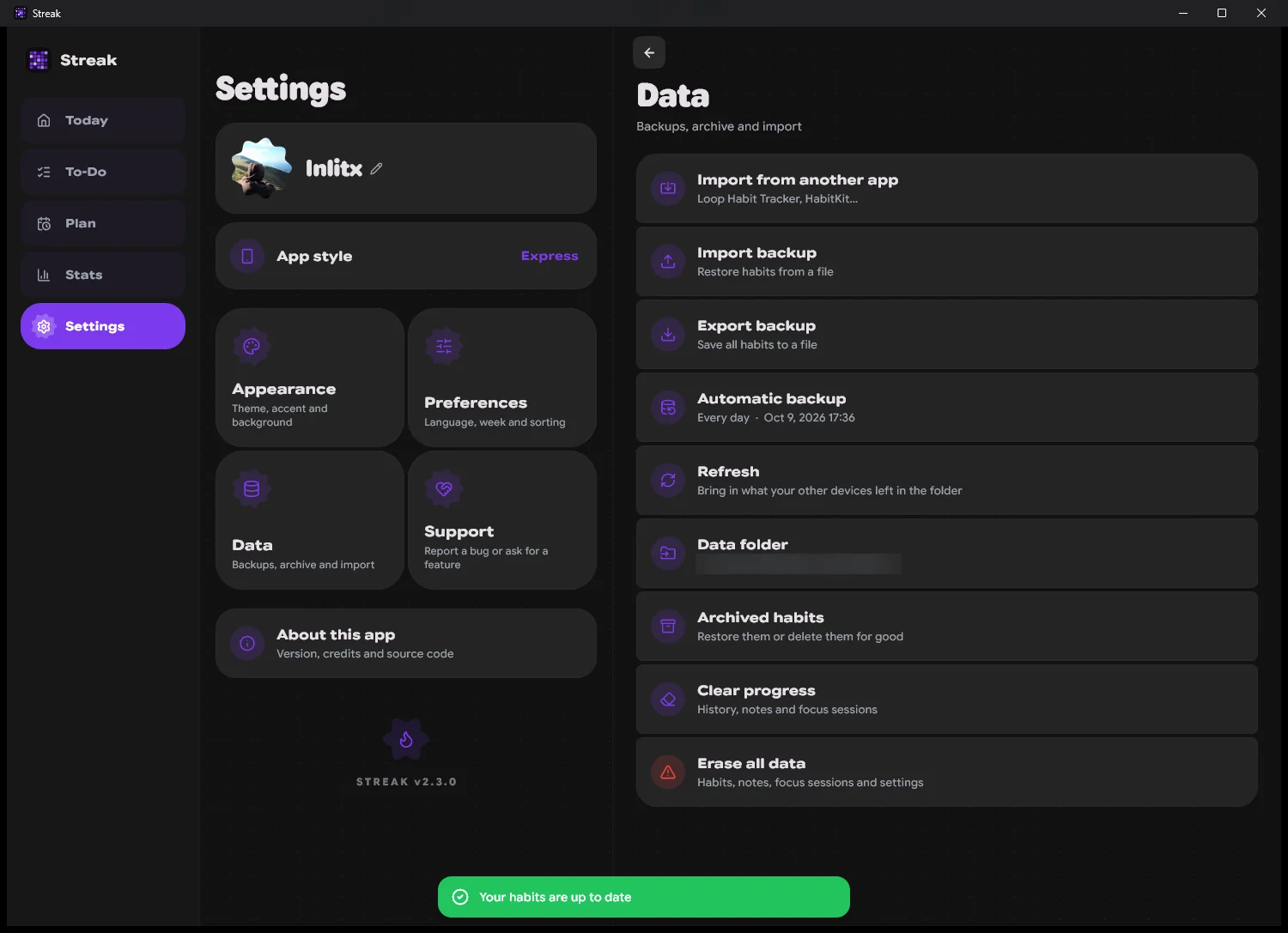
It works the same the other way round: Refresh on the phone brings in what you did on the PC.
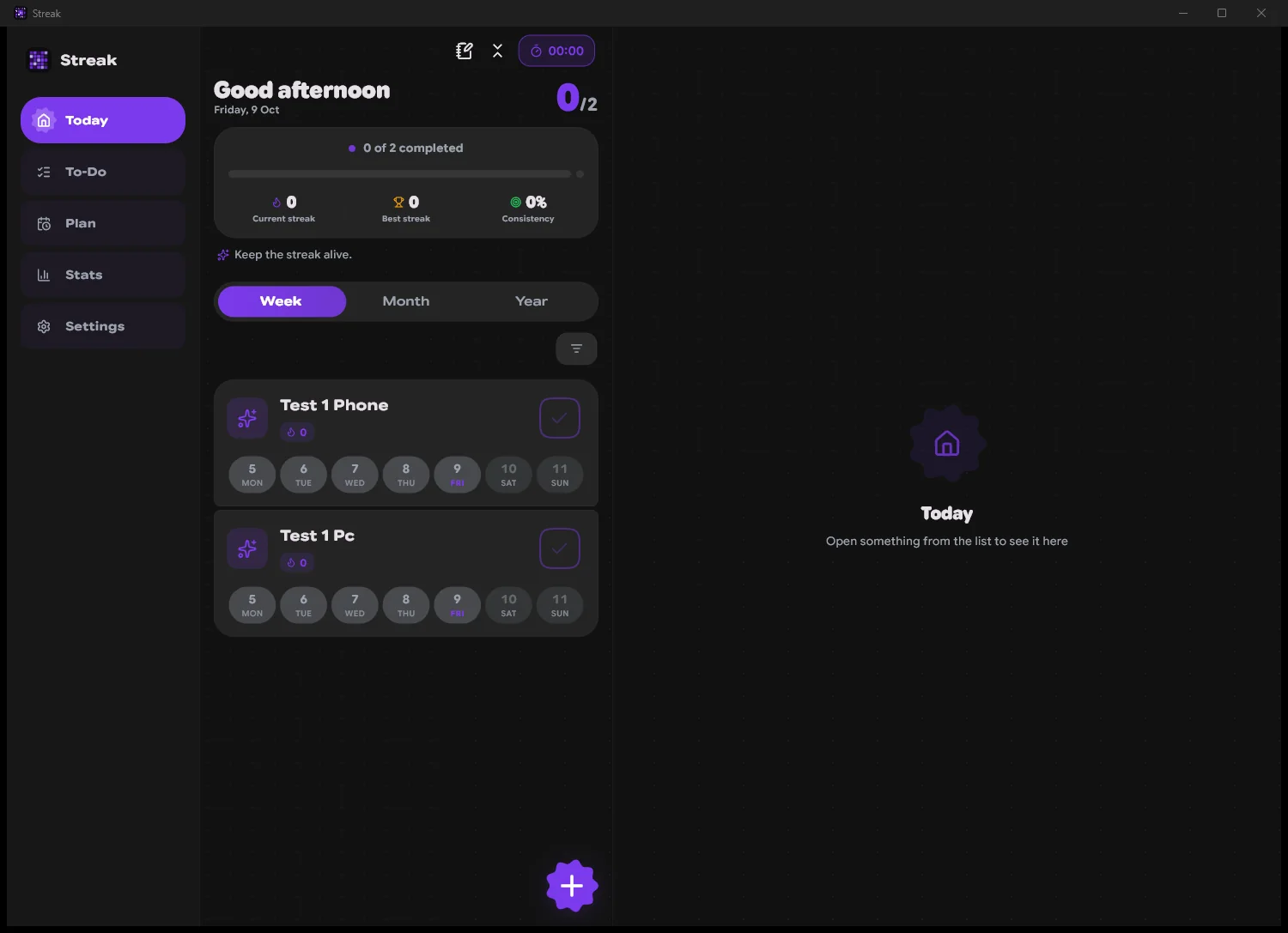
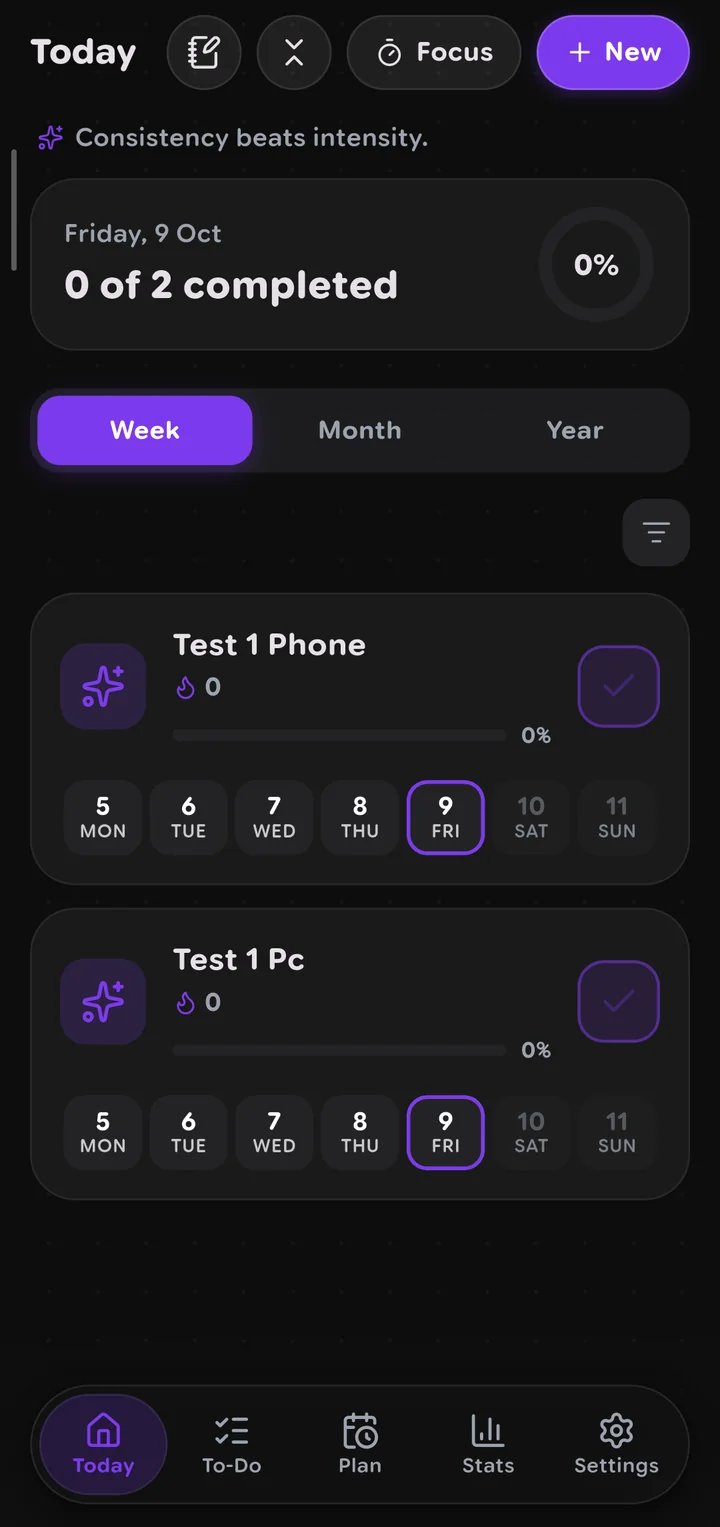
In my test I created one habit on each device. After one Refresh on each side, both had both.
Good to know
- A marked day is never lost. Streak merges, it does not replace. A day marked on either device stays marked. If both devices have the same day, the larger amount wins.
- If a change does not show up, tap Refresh on the device where you made it, then on the other one. Streak reads the newest backup in the folder, so when both devices saved without reading each other first, it can take one more round.
- Unmarking does not travel. Because nothing is deleted on merge, a day you unmark on one device stays marked on the other. Unmark it there too.
- Settings of a habit follow the newest copy. Rename a habit or change its goal on one device and the other picks it up.
- The readable copy is only for reading. Restoring and syncing always use the
.jsonbackups.
That is it. Two devices, one folder, and not a single byte sent to the internet.
Coming later
In a future version, Streak will save and refresh by itself every few minutes, or every time you change something, so you will not have to tap Back up now or Refresh. It will still work without the internet.
Questions?
If you have a question, a suggestion, or something does not work for you, leave a comment below and I, or someone from the community, will gladly help. Comments are public, so please do not share anything sensitive: no personal data, device IDs, or paths with your name.
CommentsComentarios
Sign in with GitHub to comment or react. Everything is stored as a GitHub discussion.Entra con GitHub para comentar o reaccionar. Todo se guarda como una discusión de GitHub.